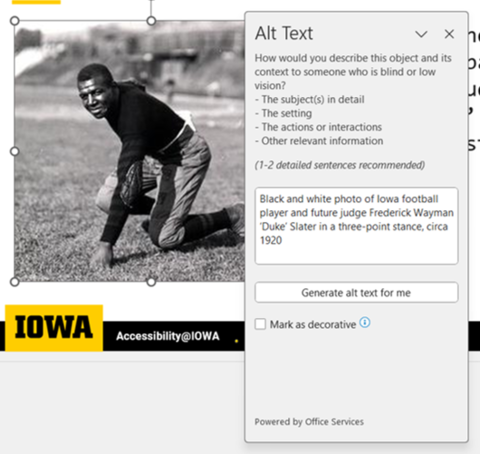
Most document and web editors let you add text descriptions (“ALT text”) of images in your documents. Make sure your ALT text adequately conveys the content and purpose of any images you include in your documents.
Tips for providing good ALT text
- For simple images, keep the description concise: generally not more than about 150 characters
- For images that require longer descriptions (e.g., infographics, charts, graphs), provide ALT text and a link to a detailed description
- For images of text (e.g., logos, wordmarks), use the image text as the ALT text
- Avoid using terms like “Picture of…” or “Image of…”; assistive technologies will provide that information to the end user
- Be sure to provide ALT text with images that are used as buttons or links
- Decorative images, spacer images, images combined with text links, and images described by adjacent text may not need ALT text
- For SVG images, apply the ARIA-LABEL attribute to the SVG element to assign ALT text
View OCR Video Series Topic 10: Alternative Text (Open Captioned Video, 5:08)
Alternative Text Articles
ALT Text I: Simple image, clear description
Friday, August 11, 2023
For basic images, a brief description of one or two sentences should be enough to convey and meaning and purpose of the image.
ALT Text II: Image Text/Wordmark/Button
Friday, August 11, 2023
Images of text should convey the meaning and purpose of the text, with visual description dependent on how the image is used.
ALT Text III: Complex Images
Friday, August 11, 2023
Complex images like infographics, charts, and data visualizations may need a little more explanation. Provide a full description somewhere in the document and refer the user to that description in your ALT text.